
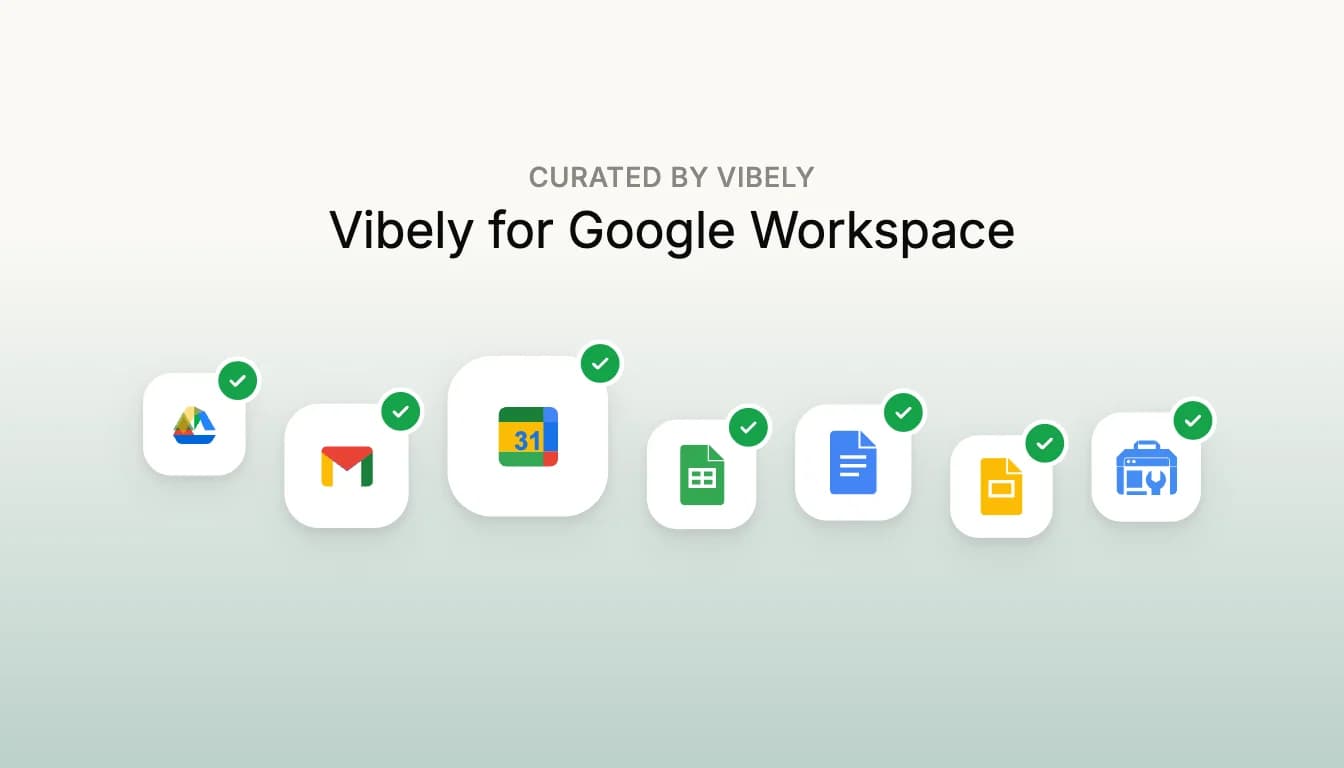
You can now connect seven Google apps to Vibely: Gmail, Google Drive, Google Calendar, Google Sheets, Google Docs, Google Slides and Google Search Console. Vibely signs in with Google directly, you choose exactly what it can access, and both the apps you publish and the agent you build with can work with your Google data.
What you can build
- Gmail. Send email from your app, draft replies, and work with the messages you allow.
- Google Drive. Find, read and create files, so an app can work with your documents, exports and uploads.
- Google Calendar. Booking pages, availability views and event reminders on top of your own calendar.
- Google Sheets. Use a spreadsheet as your app's data: dashboards, forms and internal tools on a sheet your team already edits.
- Google Docs. Read documents as content for an app, or generate new ones such as reports and briefs.
- Google Slides. Turn a deck into pages, or build a deck from the data in your app.
- Google Search Console. SEO dashboards from the clicks, impressions, queries and pages of the sites you have verified.
How to connect
- Open the Google collection. Go to Customize → Connectors. Discover opens on Vibely for Google Workspace.
- Pick an app and choose how to connect it. The two options are below.
- Choose the permissions, then sign in with Google. The connector then shows under Your connectors.
Two ways to connect
- App + chat connector. One shared Google account. Your published app uses it, and Vibely uses it while building.
- App user connector. Each person using your app signs in with their own Google account, through your own Google OAuth client. Use it when your app works with its users' own inboxes, calendars or files. Search Console connects as App + chat only, because it is your own site data rather than something your users bring.
You choose what Vibely can access
Before you sign in, Vibely lists every Google permission the connector can use, such as reading mail, sending mail or managing calendar events. A sensible starting set is ticked, none of them is required, and you can untick anything. Vibely asks Google only for what you leave ticked.
Once a connector is connected, its page under Your connectors lists its tools, and you can set each one to Always allow, Needs approval or Blocked.
Your data
- The tokens from your Google sign-in are stored encrypted in Vibely's own database.
- How Vibely uses information it receives from Google APIs, including Google's Limited Use requirements, is set out in our privacy policy.
- You can disconnect any time from Your connectors, and remove Vibely's access from your Google Account's third-party connections at any point.
Already connected Gmail, Drive or Sheets?
A connection you made before this update keeps working as it is. Reconnect it from Your connectors to move it onto the new Google connection and choose its permissions.
Does it cost credits?
No. Connecting a Google app costs nothing. Prompts use credits when you send them, the same as always.
Try it
Open the Google collection in Customize and connect the first app you need.